Unlocking Creative Potential with 25 Crosses Photoshop Stamp Brushes
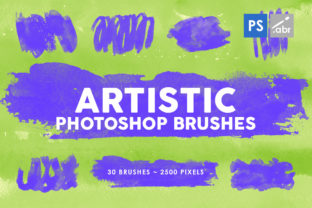
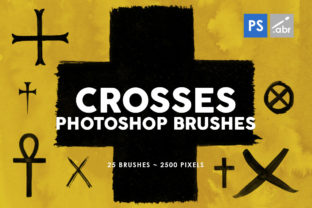
Digital art and photo manipulation often hinge on the smallest details. A flat image can feel lifeless, while a textured composition draws the viewer in and tells a deeper story. This is where specialized tools like the 25 Crosses Photoshop Stamp Brushes come into play. Whether you are a seasoned graphic designer, a hobbyist photographer, or a social media manager looking to elevate your brand visuals, understanding how to leverage high-quality brush assets is essential. This collection, featuring 25 distinct cross designs alongside 25 hand-painted brushes, offers a versatile toolkit for adding grit, depth, and character to your work. However, simply downloading a pack is not enough; knowing how to integrate these resources effectively without compromising your workflow or final output is where many creators stumble.
The appeal of this specific brush set lies in its resolution and versatility. With textures rendered at 2500 pixels, these stamps provide crisp details that hold up even in large-format prints or high-definition digital displays. Unlike lower-resolution alternatives that pixelate when scaled, these high-fidelity assets ensure your overlays remain sharp. They are compatible with any Photoshop version, removing the barrier of outdated software for many users. Yet, despite their accessibility, there are common pitfalls artists encounter when incorporating such elements into their projects.
Avoiding the Trap of Overuse and Poor Blending
One of the most frequent mistakes beginners make when using stamp brushes, particularly bold shapes like crosses, is applying them with full opacity right out of the gate. It is tempting to click once and leave the stark black or white shape on the canvas, but this often results in a "sticker" effect that looks disjointed from the rest of the image. When texture overlays do not interact naturally with the underlying photo, the composition feels artificial and amateurish.
To avoid this, consider the blending mode and opacity settings as your primary tools for integration. Instead of leaving the layer on "Normal," experiment with modes like Multiply for darkening effects or Screen for lightening highlights. For the 25 Crosses Photoshop Stamp Brushes, reducing the opacity to between 30% and 60% often yields a more subtle, weathered look that suggests age or wear rather than just sitting on top of the image. Think of these brushes as ingredients in a recipe; a little goes a long way toward flavoring the dish without overpowering it.
Misunderstanding Resolution and Scaling Limits
While this pack boasts a generous 2500-pixel size, a common misconception is that "high resolution" means "infinite scalability." Some users assume they can stretch these stamps to fill an entire billboard without consequence. While 2500 pixels is excellent for most web graphics, standard prints, and moderate-sized manipulations, pushing any raster asset beyond its native dimensions will eventually introduce softness or blurriness.
The corrective approach here is proactive planning. Before you begin stamping, assess the final output size of your project. If you are working on a massive banner, consider placing the crosses at their native size or slightly larger, rather than stretching a single small cross to cover a huge area. Alternatively, use the hand-painted brushes included in the set to build up texture manually. These dynamic brushes allow you to paint strokes that can be tiled or repeated without the obvious repetition patterns that occur when scaling a static stamp too aggressively. By respecting the native resolution, you maintain the crisp edges that make these crosses effective visual elements.
Neglecting Context and Thematic Consistency
Another overlooked detail is the thematic fit of the brush style. The 25 Crosses Photoshop Stamp Brushes carry a specific aesthetic—often associated with grunge, vintage, religious symbolism, or urban decay. Applying these indiscriminately to a clean, corporate minimalist design can create visual dissonance that confuses the audience. For instance, slapping a distressed cross overlay onto a sleek tech product mockup might detract from the product's premium feel unless the goal is specifically to convey disruption or edginess.
Before reaching for the brush tool, ask yourself what message the texture conveys. Are you creating a poster for a music festival? A book cover for a historical drama? Or perhaps a social media graphic for a Halloween sale? In the latter cases, these crosses serve as powerful decorative elements that enhance the mood. However, for a clean lifestyle blog header, you might need to use them sparingly, perhaps masking them out so only faint traces remain in the corners. Context dictates usage; ensuring your visual effects align with your brand voice or artistic intent prevents the final piece from feeling mismatched.
Optimizing Workflow Efficiency
Efficiency is often sacrificed when creators fail to organize their assets. With 50 brushes in total (25 crosses and 25 hand-painted variants), scrolling through a long, unorganized list can slow down your creative flow. Many users install new packs without renaming or grouping them, leading to frustration when trying to locate a specific texture mid-project.
A better approach involves taking a few minutes to set up your workspace immediately after installation. Create a dedicated group in your Brush Settings panel for this pack. You might even rename the brushes internally if your version of Photoshop allows, or simply memorize the order by testing them on a scratch layer first. Knowing exactly which of the 25 crosses offers a solid fill versus a fragmented, dusty outline allows you to select the right tool instantly. This small organizational step saves significant time during complex photo manipulations or game asset creation, where speed and precision are paramount.
Making the Right Choice for Your Projects
When evaluating whether this brush set is right for your current needs, consider the variety of applications it supports. These textures are not limited to static images; they are equally valuable for creating visual effects in game UI design or adding atmospheric depth to video thumbnails. The hand-painted brushes included offer a softer counterpoint to the rigid geometry of the crosses, allowing for seamless transitions between hard edges and organic noise.
Before committing to using these in a client project, always run a test render. Check how the crosses interact with different color backgrounds. Do they vanish against dark tones? Do they look too harsh on light pastels? Adjusting the color dynamics or adding a slight outer glow can sometimes bridge the gap between the stamp and the background. Remember, the goal is enhancement, not distraction. By treating these brushes as flexible components rather than fixed solutions, you unlock their full potential.
In conclusion, the 25 Crosses Photoshop Stamp Brushes represent a robust resource for anyone looking to add texture and narrative depth to their digital creations. By avoiding common errors like over-saturation, improper scaling, and thematic mismatches, you can ensure that these tools elevate your work rather than clutter it. Whether you are a freelancer delivering assets to a client or an entrepreneur designing your own marketing materials, mastering the nuance of texture application sets your work apart. Take the time to understand the tools, respect their limitations, and apply them with intention, and you will find that these simple crosses can transform the ordinary into the extraordinary.